It was supposed to be a two-minute job.
A client of ours runs two Shopify stores. The second one sits under a different Partner account, and they wanted it to use the same premium theme as the first: a ThemeForest theme we'd already customised, and one that was working well.
Normally we'd move a theme with the Shopify CLI or through GitHub. This time one of our developers thought, why not just try the quick way? Export the theme as a zip, import it into the other store, and see what happens.
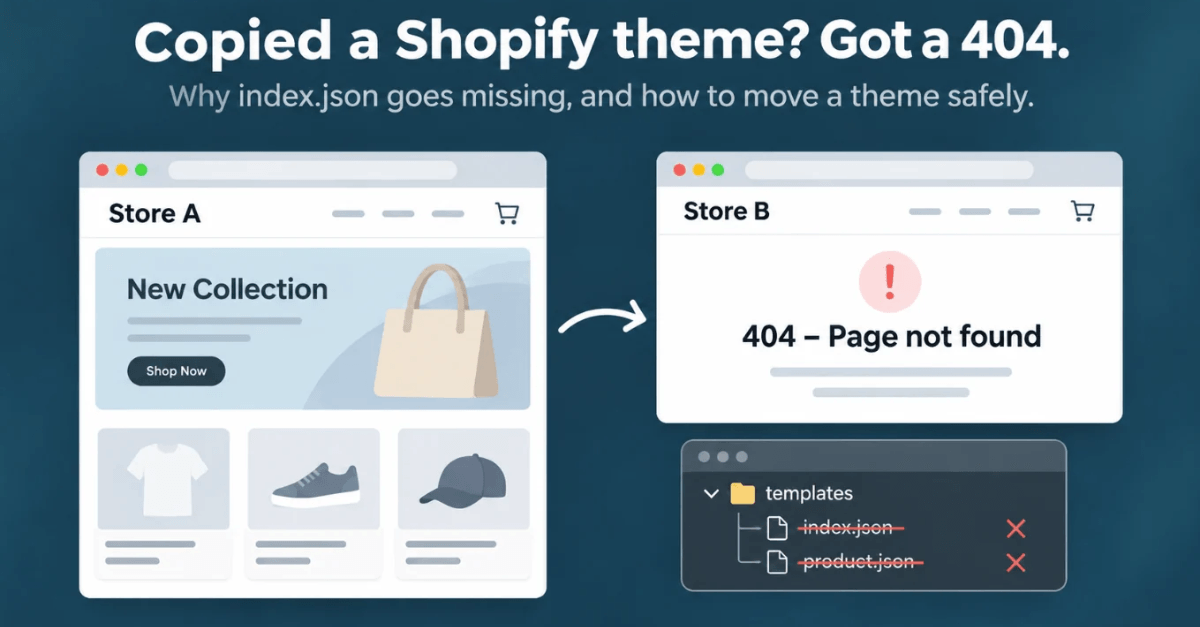
What happened was a 404.
Product pages showed the same thing. In the templates folder, index.json and product.json were gone, along with a few other templates. The zip had them. The new store didn't.
It took us about five minutes to spot. It took one question to explain: is this theme licensed for this store?
It wasn't.

What was actually wrong
The theme had been bought once, for the client's first store. In this client's case, the theme came from ThemeForest, where it's sold under Envato's Regular Licence. That covers one end product, and the theme's author reads it as one live store. Most paid Shopify themes work the same way, including those from the Shopify Theme Store: one licence, one store. Put the same theme on a second store and you're outside the licence, even when the same company owns both.
The import didn't fail with a big red error. The theme just came through incomplete, without the templates a store needs to show its home and product pages.
We told the client what we'd found. They bought a second licence, and the second store now runs a properly licensed copy, with updates and author support.
A quick note: licence terms vary by theme author, and this isn't legal advice. Check your theme's licence page before reusing it on another store.
Not every missing index.json is a licence problem
Ours was. But if your own store is showing a 404 after a theme import, there are a few other causes worth ruling out.
Your templates point to files the new store doesn't have. Since Online Store 2.0, most Shopify templates are JSON files. index.json is basically a list of sections and their settings: this banner image, that video, this collection. Those are references to things in the old store, not copies of them. If a template points to a video or image the new store doesn't have, Shopify can skip that template on import. Shopify Community has plenty of threads from people who hit exactly this.
The theme file doesn't carry your content. Downloading a theme gives you code and settings. Images and videos uploaded through the theme editor live in Content > Files, and they stay behind. So do your products, collections, menus and metafields.
You uploaded the wrong zip. A lot of premium themes bought outside the Shopify Theme Store arrive as a bundle: the main theme, several demo presets and documentation. Upload a preset instead of the main theme and you can end up with missing files.
Fixing a store that's already broken
Don't publish it. Work on the unpublished copy and go in this order.
- Check the licence. If the theme isn't licensed for this store, sort that out before you spend an hour in the code. It might be the whole problem.
- Compare the templates folders. Put the new store's templates folder next to the one in your original zip and write down everything missing: index.json, product.json, collection.json, page.json, and any alternates like product.bundle.json.
- Move the media first. If templates reference images or videos, upload them to the new store's Files before anything else.
- Recreate the missing templates. In Edit code, choose "Add a new template", pick the type, and paste in the JSON from the original file.
- Clear what can't move. If a template still won't save, look for settings pointing at the old store's videos, images, collections or menus. Clear them and reassign the content in the theme editor.
- Click through every page type in preview: home, product, collection, page, cart, blog, article, search and 404.
- Check your apps. App blocks and embeds only work if the same apps are installed on the new store.
Publish when every page loads. Then check it again on your phone.
How we move themes now
A zip upload is fine for a quick look. For a real move, we use the Shopify CLI: pull the theme from the original store and push it to the new one as an unpublished theme. The CLI tells you which files failed to upload, which a zip import often won't. If the client keeps the theme in GitHub, we also compare the two theme folders so nothing missing slips through.
The quick zip test still earned its keep, though. It surfaced the licence problem in five minutes, before anything went live.
Our checklist before any theme move
We run through this every time now:
- Is there a licence for this store?
- Is this the main theme zip, not a demo preset?
- How many files are in templates, sections and config right now? Count them; you'll want the number later.
- Are the theme's images and videos already in the new store's Files?
- Do the collections, menus and metafields the theme expects exist?
- Are we pushing it as unpublished?
- After the upload, do the file counts match?
- Have we clicked through every page type on mobile and desktop?
- Are the apps installed?
- Are GA4 and the Meta pixel still firing?
Quick answers
Why does my Shopify home page show 404 after uploading a theme?
Usually because templates/index.json didn't come across. The two common reasons: the theme isn't licensed for the new store, or the template points to an image or video that only exists in the original store. Check the licence, then open Edit code > templates and recreate any missing file from the original theme.
Can I use one premium theme on two Shopify stores?
Generally no. Paid Shopify themes are licensed per store, whether you buy them from the Shopify Theme Store or a third-party marketplace. A second store needs a second licence. Some authors allow a development or staging copy, so check their terms.
Does downloading a Shopify theme include images and videos?
No. You get the code and settings. Media lives in the store's Files and has to be moved separately.
What's the safest way to copy a theme to another store?
Push it with the Shopify CLI as an unpublished theme, check which files failed, compare file counts with the original, and preview every page type before publishing.
Before you hit publish
Copying a theme looks like a 15-minute ticket. It touches licensing, templates, media, apps and tracking, and if you miss one, the store goes live with 404s on the pages that make money.
If you're about to move a theme or set up a second store, or you're cleaning up after a move that went wrong, our free Shopify store audit is a good place to start. We'll tell you what's likely to break before your customers find it.
About the author
Raj Savaliya is a Shopify Developer at Hopiant, specializing in custom themes, Shopify Liquid, troubleshooting, and store performance optimization. Working alongside a team that has supported 200+ D2C brands, Raj shares hands-on technical insights to help merchants and developers solve real Shopify problems.